New Osmo Pocket in hand? This guide walks you through everything — first setup, connecting the DJI Mimo app, and eight real ways to use it, shot with things you already have at home. Everything here works whether you're holding a Pocket 3 or the newer Pocket 4 — they share the same gimbal, sensor, touchscreen and ActiveTrack, so just follow along.
First Steps: Setting Up Your Osmo Pocket
Charge it up
Plug in via the USB-C port on the base before your first shoot. A full charge gives you roughly 166 minutes of recording on the Pocket 3, or about 240 minutes on the Pocket 4.
Insert a fast microSD
The Pocket 3 has no built-in storage, so a microSD card is required. The Pocket 4 ships with 107GB built in as a backup, but a card still means more shooting before you need to offload. Look for at least a UHS-I, U3/V30-rated card.
Power on and flip the screen
Press and hold the shutter/record button to power on. The 2-inch touchscreen rotates so you can shoot vertical for Reels and Stories, or horizontal for YouTube — just flip it and the image follows.
Learn the controls
The shutter button starts and stops recording, the small joystick pans and tilts the gimbal, and swiping down from the top of the screen opens quick settings. Double-tap anywhere on a subject to lock ActiveTrack; tap outside the frame — or click the joystick once — to release it.
Connect the DJI Mimo app
Download DJI Mimo from your phone's app store (or scan the QR code in the box), turn on Bluetooth and Wi-Fi on your phone, open Mimo, tap the camera icon, and follow the pairing steps. Once paired you get remote control, easier editing, one-tap sharing, livestreaming, and firmware updates — connect it once and keep it updated. You can also plug in a USB-C cable to transfer files straight to your phone or computer, or use the camera as a webcam.
8 Real Ways to Use It — All Shot With Things You Already Have
No rig, no tripod, no drama. Here are eight ways to get great footage with your Osmo Pocket and whatever's already around the house.
SCENARIO 01
The Day-in-My-Life Walk
Clip it to nothing, just hold it and walk. The gimbal smooths out every step, so a stroll through the souq, the corniche, or your own majlis looks like a proper tracking shot. Talk to the camera as you go.
SCENARIO 02
Top-Down Cooking Shot
Stand the camera on a stack of books or wedge it into a mug on the counter, aim it straight down at your chopping board or a plate of kahwa and dates. Instant recipe-reel look, zero rig needed.
SCENARIO 03
Piece-to-Camera on a Cup
Prop the Pocket on an upturned cup or glass at eye level, flip the screen to face you, double-tap your face to lock ActiveTrack, then just talk. It's a hands-free interview setup in ten seconds.
SCENARIO 04
Kids & Family Moments
Let ActiveTrack do the work. Double-tap on a running toddler, a pet, or anyone moving around the majlis, and the gimbal keeps them centered and steady without you touching the camera again.
SCENARIO 05
Golden-Hour Selfie Video
Flip the screen forward and walk toward the light at sunset — Qurum Beach, the corniche, or your own rooftop. The 1-inch sensor handles low light well, so golden hour looks properly cinematic.
SCENARIO 06
Slow-Motion Fun
Switch to Slow Motion mode for a splash, tea being poured, or the kids jumping into the pool — up to 4K/120fps on the Pocket 3, up to 4K/240fps on the Pocket 4.
SCENARIO 07
Car / Dashboard Vlog
Wedge it on the dashboard or use a magnetic mount, and record the drive to work or a road-trip commentary. The gimbal absorbs the bumps so the footage stays smooth even on rough roads.
SCENARIO 08
Sunset Timelapse
Set it on a windowsill or a stack of books facing west, switch to Timelapse mode, and let it run while you make chai. A whole sunset, condensed into a few seconds.
Shoot short, move slow
Shoot in short clips — five to fifteen seconds — and when you do move the camera, move it slowly. The gimbal removes shake, but it can't turn a fast, jerky pan into something smooth. Slow, deliberate movement is what actually reads as 'cinematic' when you watch it back.
Accessories Explained — What Each One Unlocks
You don't need any of these to start — but each one opens up something new.
Wireless mic
Cleaner audio the moment your subject isn't right next to the camera — interviews, terrace vlogs, a noisy souq.
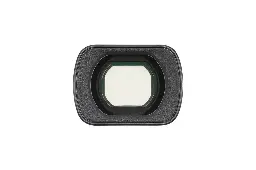
Wide-angle lens
Fits more into the frame — room tours, food spreads, and group shots.
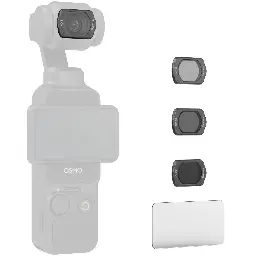
ND filters
Smooth, natural motion blur in bright Omani daylight without blowing out the exposure.
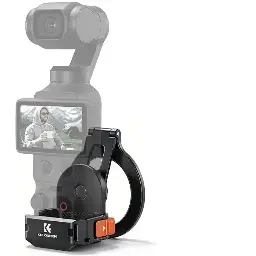
Extension / magnetic adapter
Gets the camera higher, around corners, or further from your hand for a proper group shot.
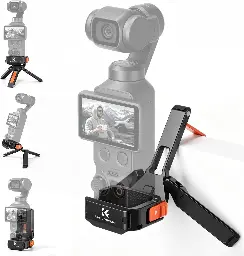
Mini tripod / grip mount
Hands-free desk shots, a steady table-top timelapse, or a quick photo-op stand.
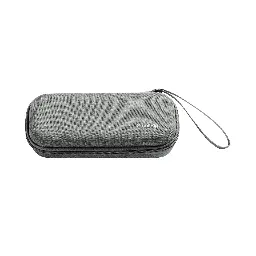
Case
Keeps the gimbal head protected when it's tossed in a bag.
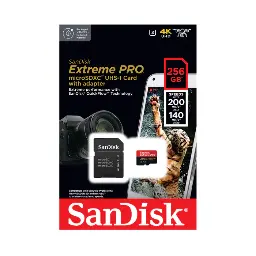
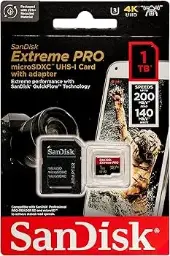
Fast microSD
The Pocket has no spare card slot, so always carry one extra.
In Stock at Skyorbits, Muscat
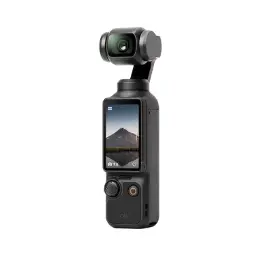
Cameras
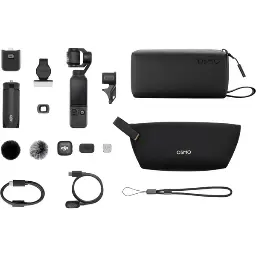
Accessories
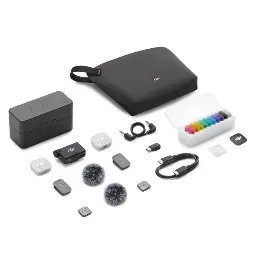
Memory cards
All prices VAT-inclusive. Genuine DJI, in stock at our Muscat showroom.
Frequently Asked Questions
How do I connect my Osmo Pocket to the DJI Mimo app?
Download DJI Mimo from your phone's app store (or scan the QR code in the box), power on the Osmo Pocket by pressing and holding the shutter button, then turn on Bluetooth and Wi-Fi on your phone. Open Mimo, tap the camera icon, and follow the pairing prompts. Once connected you can control the camera remotely, edit and export footage, livestream, and install firmware updates.
Does this guide work for the DJI Osmo Pocket 4 too?
Yes. The Pocket 3 and Pocket 4 share the same 1-inch sensor, 3-axis gimbal, touchscreen controls and ActiveTrack — everything in this guide applies to both. The Pocket 4 adds 107GB of built-in storage, a brighter 1000-nit screen and 4K slow motion up to 240fps.
Which memory card should I use?
Look for at least a UHS-I, U3/V30-rated microSD card for smooth 4K recording. We stock the SanDisk Extreme Pro 128GB for everyday use and the 1TB for long sessions without swapping cards.
How do I vlog with the Osmo Pocket without extra gear?
Prop it on any raised surface — a mug, a stack of books, a cup — flip or rotate the touchscreen to face you, double-tap your face on screen to lock ActiveTrack (or use Face Auto-Detect), and talk. No tripod needed to get started.
What's the one thing that instantly makes my footage look better?
Shoot in short clips and move the camera slowly. The gimbal removes shake — it can't fix a fast, jerky pan. Slow, deliberate movement is what makes footage look cinematic.
Why does my Osmo Pocket footage look worse after sharing it on WhatsApp?
It's WhatsApp's compression, not your camera — TikTok and Snapchat don't compress nearly as hard. If you're sending a clip directly to someone or a group, attach it as a Document instead of a Video (tap the paperclip, choose Document) — WhatsApp skips its usual video compression on documents, so quality stays close to the original. If you're posting to your Status, WhatsApp always compresses it no matter what, so instead go to Settings, then Storage and Data, then Media Upload Quality, and set it to "Best Quality," and keep clips short with slower movement — that's what survives compression best.
Ready to shoot?
Order online and check out in minutes — or see a demo at our Muscat showroom. Installments available (Bank Muscat / Meethaq).
Ask us on WhatsAppSpecs reflect official DJI information as of July 2026. Prices and stock as of the same date — please confirm on the product page.