Short answer: BumpMesh is a free browser tool by Stefan Hermann of CNC Kitchen that adds a real, touchable texture to a 3D model before you print it. You load an STL, OBJ, 3MF or STEP file, pick one of 101 built-in textures such as wood grain, leather, carbon twill, knurling or cobblestone, set the size and height, and export a new STL ready for your slicer. The texture becomes part of the shape, not a colour, so a plain grey print in one filament comes out looking like wood or leather, with no AMS, no painting and no modelling: you just load a file and pick a texture. Everything runs in your browser and nothing is uploaded. BumpMesh is not a Bambu Lab product, but its STL opens in Bambu Studio like any other model, so you can print it on a Bambu Lab A1 mini. Start with a shallow texture on a small test part.
Your print came out perfect, but it still looks like plastic? A texture is the fastest way to change that. Every BumpMesh feature below is from CNC Kitchen's own BumpMesh page, changelog and source code notes.
What BumpMesh does
- 101 built-in textures: eight groups, from geometric patterns, weaves and carbon twill to wood grain, bark, leather, scales and grip knurling.
- Your own picture as a texture: upload an image and BumpMesh turns light and dark into raised and lowered surface.
- Stamp mode for logos: since version 1.5 (25 October 2026) a texture can be placed once, like a badge or label, instead of covering the whole part.
- Up to four textures on one model: paint which surfaces get which texture.
- Keep some faces smooth: mask the top or bottom faces by angle, or paint the areas you want left plain, so the face on the bed stays flat.
- Live 3D preview: you see the real displacement on the model before you export.
“All processing runs entirely in the browser — no data is uploaded to any server.” — CNC Kitchen, BumpMesh README on GitHub (read 16 November 2026)
How to use it with a Bambu Lab printer
- Open bumpmesh.com in Chrome, Edge, Firefox or Safari.
- Drop your model in: an STL from MakerWorld or your own design, or a STEP file from a CAD program.
- Pick a texture from the gallery and choose how it wraps the part, for example Cylindrical for a cup or Triplanar for a complex shape.
- Set the texture size and height, then check the 3D preview.
- Export the new STL and open it in Bambu Studio like any other model.
- Print a small test piece first, then the full part.
Tips so the texture prints well
- Too shallow hides it, too deep breaks it: BumpMesh warns you when the height passes 10% of the model's smallest size.
- Watch for new overhangs: some textures push the surface downward. The Overhang Protection option in the Advanced settings stops points from moving down.
- Keep the bottom flat: mask the bottom faces, or use Smooth Bottom in the Advanced settings, so the part sits well on the build plate.
- Big files: a fine texture adds many triangles. BumpMesh simplifies the result to a triangle limit you set when it exports.
Which printer for textured prints
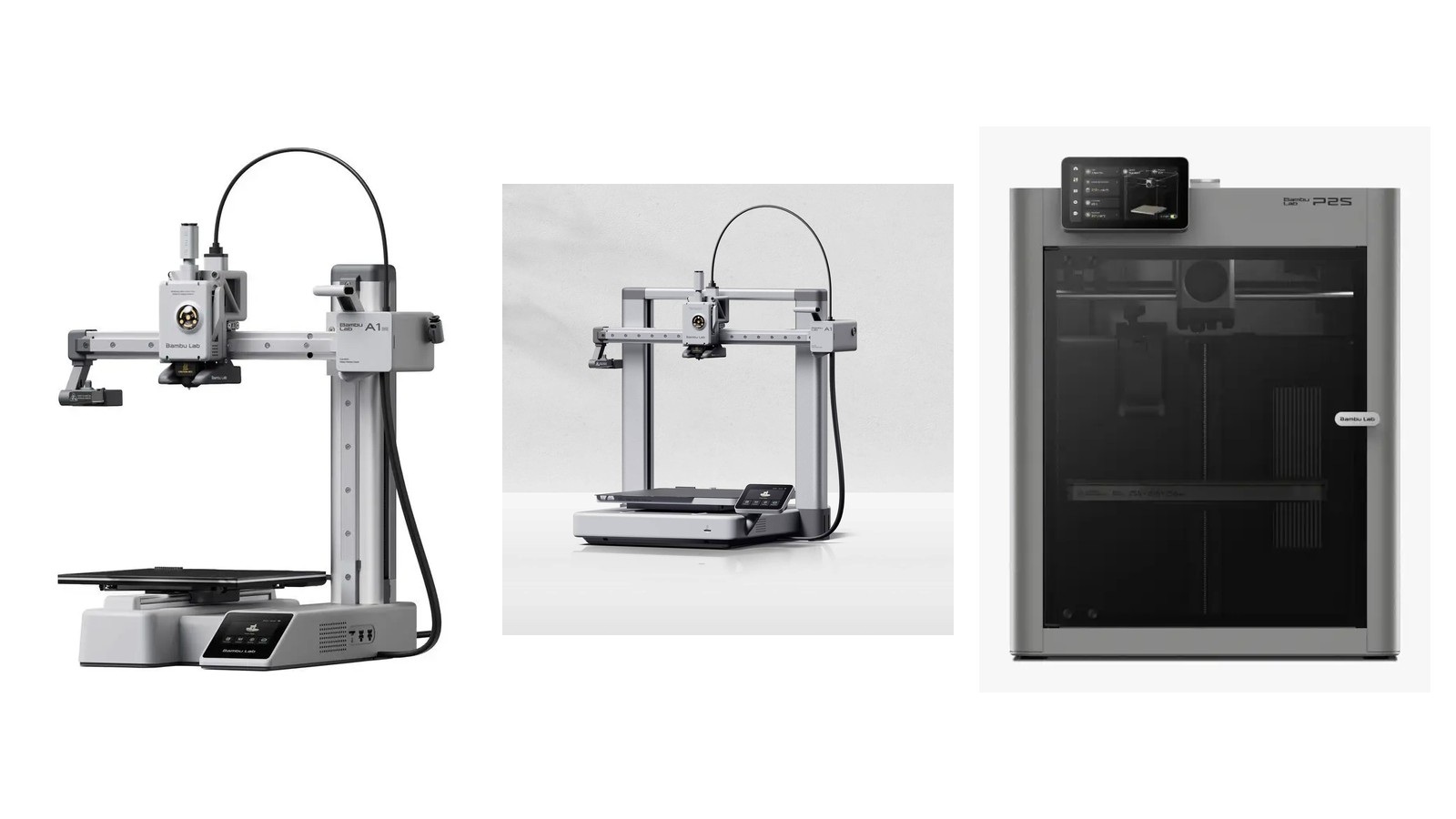
- Bambu Lab A1 mini: a 180 × 180 × 180 mm build volume for a first textured cup, keyring or desk piece.
- Bambu Lab A1: up to 256 × 256 × 256 mm for bigger textured vases, boxes and planters.
- Bambu Lab P2S: a 256 × 256 × 256 mm printer for textured parts you print often.
Ask us which printer fits on WhatsApp
Related guides
- Which 3D printer should a creator buy? A1 mini vs A1 vs P2S
- Bambu Lab parts that fix common printer problems
Frequently asked questions
What is BumpMesh?
BumpMesh is a browser tool by Stefan Hermann of CNC Kitchen. It pushes a texture into the surface of a 3D model, such as wood grain, leather or knurling, and gives you a new STL file to slice and print.
Is BumpMesh made by Bambu Lab?
No. BumpMesh is made by CNC Kitchen. It exports a normal STL file, so you open it in Bambu Studio like any other model and print it on your Bambu Lab printer.
Does BumpMesh cost anything?
No. The tool opens in the browser with nothing to install, its code is open source under the GNU AGPL licence, and the maker asks for an optional tip instead of a fee.
Do I need a multi-colour printer or the AMS for BumpMesh?
No. The texture is part of the shape itself, not a colour, so it needs no AMS or multi-colour setup: one filament is enough.
Which files can I load into BumpMesh?
STL, OBJ, 3MF and STEP files. STEP files from CAD programs are converted to a mesh inside the browser.
Are my model files uploaded anywhere?
No. CNC Kitchen states that all processing runs in your browser and no data is uploaded to any server.
How deep should the texture be?
Start shallow and test on a small part. BumpMesh warns you when the texture height goes past 10% of the model's smallest size, because the shape can start to overlap itself.
Can I put a logo on a print with BumpMesh?
Yes. Stamp mode, added in October 2026, places a texture once instead of repeating it, so an uploaded logo or label image can sit on one spot of the model.
Where can I get a 3D printer in Oman to try BumpMesh?
At Skyorbits in Muscat: order a Bambu Lab printer on skyorbits.tech or in the Skyorbits app. Not sure which one fits? Message us on WhatsApp.
Sources
Last updated: 16 November 2026. BumpMesh is made by CNC Kitchen, not by Bambu Lab or Skyorbits.